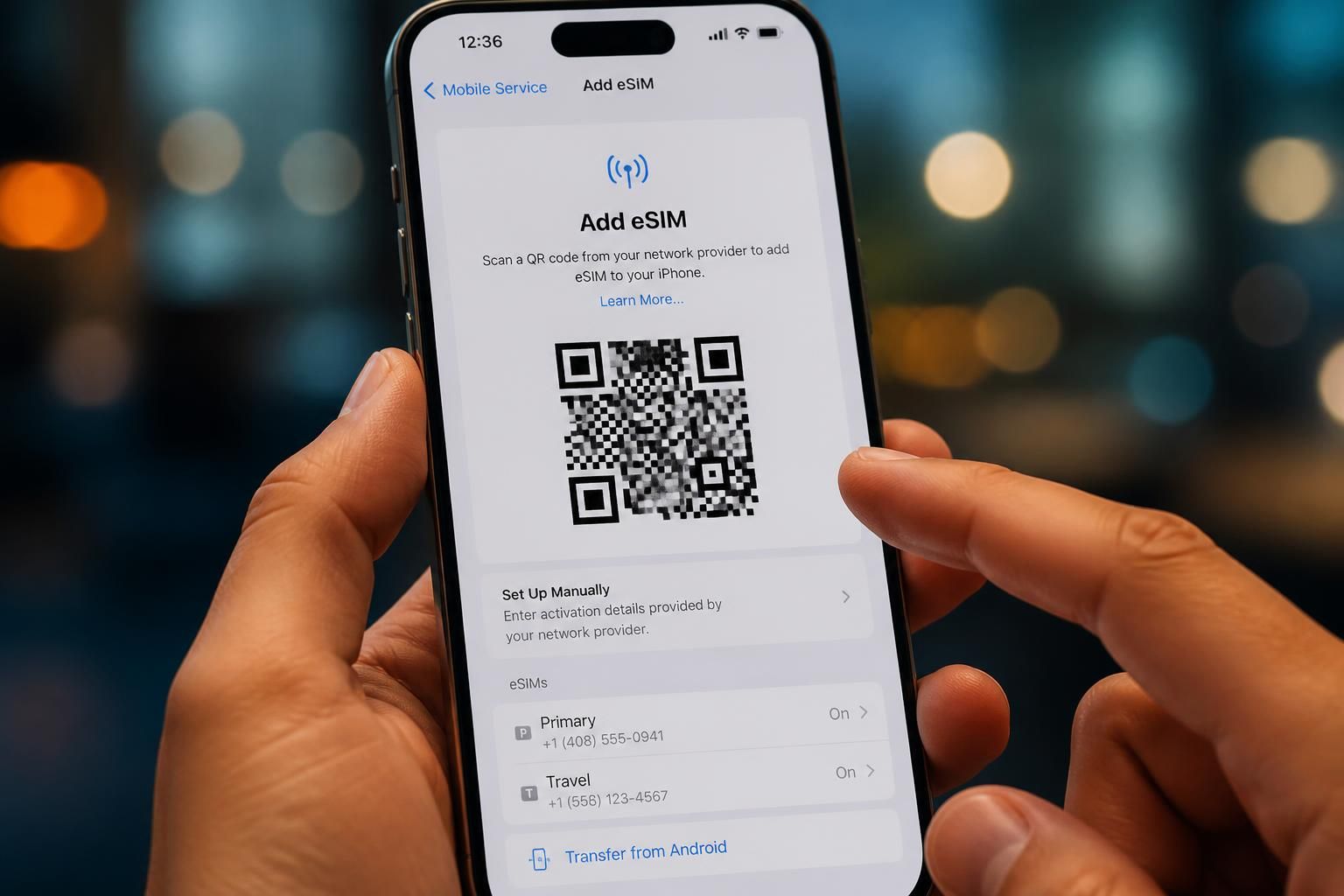
In the era of seamless connectivity and worldwide travel, digital solutions like Ubigi’s eSIM have revolutionized how we stay connected abroad. With the growing demand for hassle-free mobile data access, Ubigi’s eSIM technology offers a convenient and flexible means to activate cellular service without physical SIM cards. This innovation enables travelers and professionals alike to access global mobile networks instantly, using QR codes for swift profile downloads and simple settings adjustments. The process of activation, network setup, and first connection with Ubigi’s eSIM brings ease and reliability right to the fingertips of users across the globe.
As the world increasingly adapts to remote work and frequent trips, understanding the finer points of Ubigi eSIM activation becomes crucial. From generating and scanning QR codes to configuring device settings, each step ensures a smooth transition to uninterrupted mobile data. This guide delves into the practicalities, technological nuances, and user experiences that shape Ubigi’s comprehensive offer to its global clientele.
Key Points:
- Effortless activation through a QR code that instantly downloads the Ubigi eSIM profile.
- Flexible mobile data management with dual SIM capabilities on both iOS and Android devices.
- Global and reliable connectivity vetted by users across regions such as Switzerland, Japan, the UK, and Egypt.
- Comprehensive network setup instructions tailored for various device platforms.
- Support for business users with unlimited data plans and seamless activation processes.
Simplifying Ubigi eSIM Activation with QR Code Technology
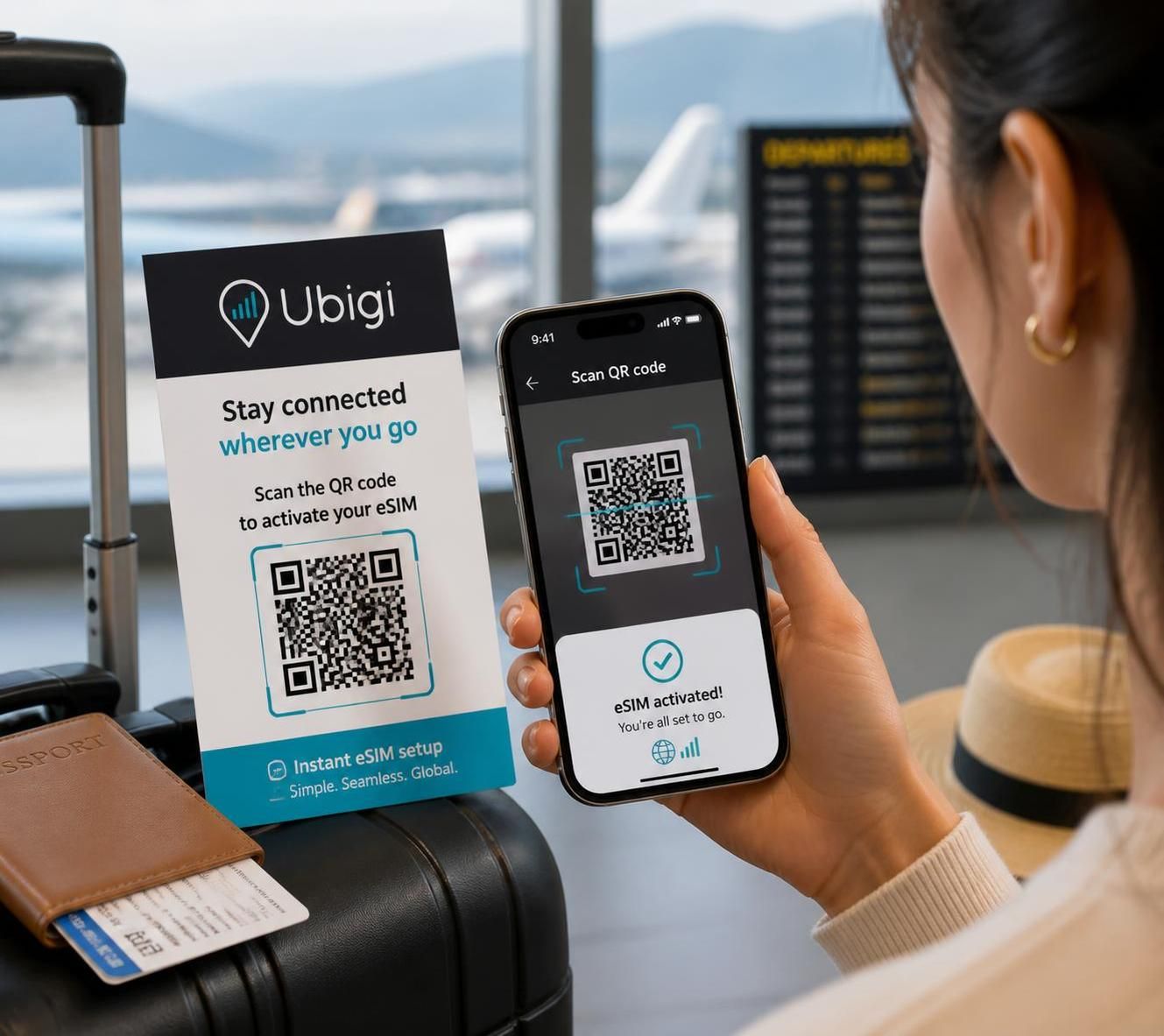
One of the most compelling features of Ubigi eSIM activation is its integration of QR code technology, designed for maximum convenience. Instead of waiting for a physical SIM card to arrive or navigating complex carrier setups, users can initiate the entire process by scanning a QR code. This innovation reduces wait times and eliminates many traditional hassles associated with SIM card procurement and installation.
Upon deciding to use Ubigi, the customer receives an email containing the QR code necessary for the eSIM profile download. Scanning this QR code with a compatible device triggers the profile installation, embedding the mobile plan directly into the smartphone’s system. This profile contains essential data such as the network settings and the activation credentials, enabling immediate connectivity once installed.
For iPhone users, the process is intuitive: from the “Settings” menu, select “Cellular,” tap “Add Cellular Plan,” and then scan the QR code. After a brief setup and profile download, the Ubigi eSIM becomes ready to use. Android users experience a similar process via “Settings,” followed by “Connections,” “SIM card manager,” and the option to add a mobile plan through QR code scanning.
However, caution is advised to ensure that the device is eSIM-compatible and carrier-unlocked before attempting installation. An active and stable Wi-Fi connection is also recommended for a smooth profile download and activation.
The QR code method not only accelerates setup but also enhances security by minimizing manual input errors during activation. It provides a standardized, accessible approach appreciated globally by users who value swift and dependable mobile data access.
Concrete examples underscore the success of this activation method. Users traveling in remote Swiss regions praise Ubigi for cost savings on data, minimizing exorbitant roaming fees. Similarly, in Japan, Ubigi’s eSIM, activated seamlessly through QR code scanning, has proven reliable with VPN usage, despite the data-intensive nature of some online activities.
Mastering Ubigi eSIM Settings for Optimal Connectivity
Once the Ubigi eSIM profile has been downloaded, users must configure their device settings correctly to ensure uninterrupted service. This phase is crucial because improper settings can hinder mobile data connectivity, affecting both personal and professional communication.
One of the first steps post-activation is confirming that the “Data Roaming” feature is enabled. On iPhones, this setting is accessed via “Settings” → “Mobile Data” → “Ubigi” → allow “Data Roaming.” Enabling this option permits the phone to utilize foreign networks, essential for global travel scenarios where Ubigi operates its services.
Additionally, users can leverage dual SIM technology prevalent in most recent smartphones. Devices such as the iPhone XR and later models support simultaneous use of a physical SIM and an eSIM, facilitating flexible personal and professional communications.
Switching between physical SIM and Ubigi eSIM on iPhone:
- Go to “Settings” and select “Mobile Data.”
- Turn on both the “Primary” (physical SIM) and “Secondary” (Ubigi eSIM or renamed) lines.
- Choose which line is used for Calls, SMS, and Mobile Data under respective fields.
- Activate the chosen lines accordingly.
Android users follow a related path via “Settings” → “Connections” → “SIM card Manager,” where they can enable and prioritize their physical SIM and Ubigi eSIM profiles. Notably, while multiple eSIM profiles can be stored, Android devices typically allow only one active eSIM at a time.
The proper configuration of these settings impacts user experience significantly. As described by many satisfied customers across continents, careful setup delivers reliable signal strength even in rural or island locations, such as Phuket. This adaptability demonstrates Ubigi’s robust network partnerships and efficient integration into existing mobile platforms.
Professionals using Ubigi eSIM for business purposes benefit from custom-tailored plans ranging from one day up to 90 days, many including unlimited data options. This flexibility ensures persistent internet access without switching physical SIM cards, facilitating constant communication and workflow regardless of location or device.
| Device Type | Activation Method | Dual SIM Support | Data Roaming Required | Profile Storage |
|---|---|---|---|---|
| iPhone XR and Newer | QR Code Scan | Yes (Physical + eSIM) | Yes | Multiple Profiles Active |
| Android (varies by model) | QR Code Scan or Manual Entry | Yes (one eSIM active at a time) | Yes | Multiple Profiles Stored |
Ensuring Your First Connection with Ubigi eSIM is Seamless
The moment of the first connection marks the true test of successful Ubigi eSIM activation. While downloading the profile and configuring settings are essential, establishing a stable mobile data link ensures that the process is complete.
Upon completing setup, users should check for cellular signal bars indicating network availability. Additionally, within “Settings,” under “Mobile Data,” selecting the “Ubigi” profile allows users to verify “Data Roaming” activation, confirming network access readiness.
Customer experience from 2026 highlights the smoothness of this first connection phase. For example:
- Travelers reported consistent speed and availability in diverse countries, from Egypt to European cities and the UK.
- Users engaged in data-heavy activities, including streaming and video calls, noted sustained performance thanks to Ubigi’s efficient network handoffs.
- Even in remote or rural areas, connection reliability remained strong, debunking concerns about eSIM coverage limitations.
In some cases, initial connection hiccups were resolved by restarting devices or toggling airplane mode—a common troubleshooting approach recommended by Ubigi support teams.
Businesses appreciate the automation of roaming settings, making Ubigi eSIM a plug-and-play solution for frequent international trips. The seamlessness of the first connection empowers users to focus on their essential tasks rather than technical obstacles.
Advanced Ubigi eSIM Features: Managing Multiple Profiles and Dual SIM Functionality
In 2026, managing mobile connectivity through multiple SIM profiles is an increasingly critical feature, especially for travelers and business users. Ubigi’s support for dual SIM configurations on compatible devices means users can juggle personal and professional lines without the inconvenience of swapping physical SIM cards.
Devices like the iPhone XR and beyond allow dual SIM use, activating both eSIM and physical SIM simultaneously. Android, while able to store multiple eSIM profiles, restricts active usage to one eSIM at a time, but users can effortlessly switch profiles via device settings.
This flexibility enables:
- Maintaining a domestic number and a global Ubigi data plan simultaneously.
- Separating work and personal communications efficiently without carrying multiple devices.
- Instant switching between data profiles to optimize connectivity and costs.
Moreover, Ubigi for Business eSIM plans offer unlimited data access across over 200 destinations with durations from 1 to 90 days. These plans require no physical SIM changes and simplify logistics for global enterprises and frequent travelers.
To utilize multiple profiles effectively, users can:
- Store several Ubigi eSIM profiles on supported devices.
- Label each profile clearly to ease identification in settings menus.
- Switch active profiles depending on destination or data plan specifics.
Many users commend Ubigi’s excellent customer service and straightforward user interface, which simplifies profile management and provides real-time connectivity tracking. These features, combined with robust technical support, distinguish Ubigi in the competitive telecommunications landscape.
Comprehensive Troubleshooting and Support for Ubigi eSIM Activation
Even with the most streamlined technology, activation and connectivity issues may arise. Ubigi’s dedicated support framework and detailed troubleshooting guides ensure users can overcome common challenges efficiently.
Typical issues include:
- Failure to scan or recognize the QR code.
- eSIM profile download errors due to unstable internet connectivity.
- Settings misconfiguration preventing mobile data or roaming activation.
- Device compatibility issues.
Ubigi recommends steps such as verifying device compatibility, ensuring Wi-Fi stability during profile download, and restarting the device if the eSIM fails to activate. In more specific cases, manual profile installation methods using activation codes provided via email can rectify issues when QR code scanning is impractical.
For both iOS and Android devices, clear step-by-step instructions are available in Ubigi’s official documentation and app interface, assisting users through every stage from SIM detection to network selection.
Additionally, Ubigi’s support team is accessible for personalized help, embodying the brand’s commitment to excellent communication and user satisfaction. Users worldwide have testified to the ease of solving problems through responsive, professional service, further strengthening confidence in Ubigi’s eSIM solutions.
| Issue | Recommended Solution |
|---|---|
| Cannot scan QR code | Ensure camera permissions are granted and try scanning in good lighting conditions. |
| Profile download timeout | Switch to a stable Wi-Fi network and retry installation. |
| No mobile data after activation | Verify that data roaming is enabled and the correct profile is selected in settings. |
| Device not displaying eSIM option | Confirm device supports eSIM and its firmware/software is updated. |
By following these guidelines and utilizing Ubigi’s user-centric resources, new and experienced users alike can achieve smooth network setup and enjoy consistent connectivity wherever their journeys take them.
How do you know if your Ubigi eSIM is active?
You can check by seeing at least one bar in the cellular signal icon on your device, or by going to Settings > Mobile Data > Ubigi and confirming that Data Roaming is enabled.
Can I use Ubigi eSIM alongside my physical SIM?
Yes, if your device supports dual SIM with eSIM technology, you can have both active simultaneously and select which SIM to use for calls, SMS, and mobile data.
What should I do if my Ubigi eSIM QR code won’t scan?
Ensure your device camera has permission to scan codes and that lighting is sufficient. If scanning issues persist, use manual activation options provided by Ubigi, such as entering an activation code.
Are Unlimited Data plans available for Ubigi eSIM users?
Yes, Ubigi for Business offers unlimited data plans in over 200 destinations, with coverage lasting from 1 up to 90 days.
How do I switch my data connection between my physical SIM and Ubigi eSIM?
On iPhone go to Settings > Mobile Data, turn on both SIM lines, and select which line to use for Mobile Data. For Android, this is set via Settings > Connections > SIM card Manager where you can enable and prioritize your SIM profiles.
You can check by seeing at least one bar in the cellular signal icon on your device, or by going to Settings > Mobile Data > Ubigi and confirming that Data Roaming is enabled.
Yes, if your device supports dual SIM with eSIM technology, you can have both active simultaneously and select which SIM to use for calls, SMS, and mobile data.
Ensure your device camera has permission to scan codes and that lighting is sufficient. If scanning issues persist, use manual activation options provided by Ubigi, such as entering an activation code.
Yes, Ubigi for Business offers unlimited data plans in over 200 destinations, with coverage lasting from 1 up to 90 days.
On iPhone go to Settings > Mobile Data, turn on both SIM lines, and select which line to use for Mobile Data. For Android, this is set via Settings > Connections > SIM card Manager where you can enable and prioritize your SIM profiles.

Developer and digital nomad, I lived between Canada and the United States before continuing to explore the world. After struggling with internet connectivity abroad one too many times, I created eSIMPlanet to compare plans clearly and honestly. Every article is carefully written and reviewed to save you time and money.
